
01
Capture
Workflow recording
Record clicks, inputs, navigation, and user actions so repeated browser tasks can be captured once and reused.
FlowR
Record and replay guided website workflows with clarity and control. Capture the steps once, guide the next person with context, and keep the workflow usable as interfaces change.
Available on Chrome now. Safari and Firefox coming soon.
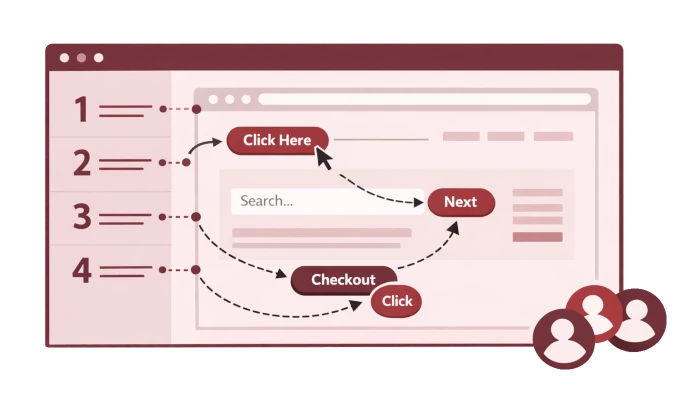
Key Features
01
Capture
Record clicks, inputs, navigation, and user actions so repeated browser tasks can be captured once and reused.
02
Guide
Replay workflows with highlights and contextual step instructions so the next person knows where to focus.
03
Maintain
Repair workflows when interfaces change so your process knowledge does not decay with each product update.
04
Share
Share workflows across the team with permission-aware access so the right people can view and maintain them.
05
Document
Capture supporting screenshots and export material when workflows need to be handed off or documented outside the extension.
Comparison
FlowR is built for repeatable browser tasks. Video still works for quick one-off demos.
| Aspect | FlowR | Conventional screen recording |
|---|---|---|
| Live guidance | Guides users on the live site, step by step. | Shows a video, so users map it back to the live page themselves. |
| Updating after changes | Fix a step without rebuilding the whole workflow. | Changes often mean rerecording the video. |
| Finding the right step | Jump straight to the step you need. | Scrub and rewind to find the right moment. |
| File size | Stores steps and instructions, so files stay smaller. | Stores full video, so files are usually larger. |
| Multiple instruction languages | Reuse one workflow with localized instructions. | Usually requires separate videos, subtitles, or voiceovers. |
| Team handoff | Built for repeatable onboarding, support, and training. | Useful for one-offs, but harder to keep current. |
FlowR
Guides users on the live site, step by step.
Conventional screen recording
Shows a video, so users map it back to the live page themselves.
FlowR
Fix a step without rebuilding the whole workflow.
Conventional screen recording
Changes often mean rerecording the video.
FlowR
Jump straight to the step you need.
Conventional screen recording
Scrub and rewind to find the right moment.
FlowR
Stores steps and instructions, so files stay smaller.
Conventional screen recording
Stores full video, so files are usually larger.
FlowR
Reuse one workflow with localized instructions.
Conventional screen recording
Usually requires separate videos, subtitles, or voiceovers.
FlowR
Built for repeatable onboarding, support, and training.
Conventional screen recording
Useful for one-offs, but harder to keep current.
FAQ
FlowR is a browser extension for recording website walkthroughs and turning them into guided, replayable experiences that other people can actually follow.
You start a recording, move through the workflow you want to teach, and FlowR captures each step. That walkthrough can then be replayed with on-page highlights, tooltips, and step instructions.
FlowR is built for product, customer success, support, operations, onboarding, and training teams. It also works well for anyone who needs to explain a website process clearly to people who are less comfortable navigating digital tools.
You can create guided walkthroughs for onboarding, internal SOPs, support responses, product demos, training flows, and other repeatable operational processes.
FlowR records common website interactions such as clicks, text input, page navigation, hover states, scrolling, and keyboard-driven steps.
Right-click the webpage element and choose the action you want to capture.
Yes. FlowR replays the steps directly in the browser so the walkthrough stays anchored to the actual interface people are using.
Yes. You can revise instructions, adjust steps, insert new ones, and keep a walkthrough current as the product or process changes.
FlowR is designed for that reality. You can repair or re-record individual steps instead of rebuilding the full walkthrough from the beginning.
Yes. FlowR supports optional screenshots when a step needs extra visual context or a clearer handoff.
Yes. Walkthroughs can be shared with teammates so they can be reviewed, reused, and distributed without repeating the explanation manually each time.
Yes. Shared walkthroughs can support different permission levels, including view-only and editable access, depending on the plan you are using.
Not for basic local use. You can create and manage walkthroughs locally, then sign in when you need sync, sharing, or account-based collaboration features.
Recordings can stay local inside the extension, with optional cloud-backed sync available for signed-in users who need shared access across a team or devices.
Yes. FlowR can generate a PDF version of a walkthrough for handoffs, documentation, or situations where an offline copy is useful.
Yes. FlowR supports localized step instructions so walkthroughs can be adapted for different teams, audiences, and regions.
FlowR treats password steps separately and avoids storing the actual password value, which helps keep sensitive inputs out of the recorded data.
Yes. Signed-in users can sync recordings so their walkthrough library is available beyond a single browser session.
Start Free
Looking for policy details? Privacy Policy and Terms of Use.